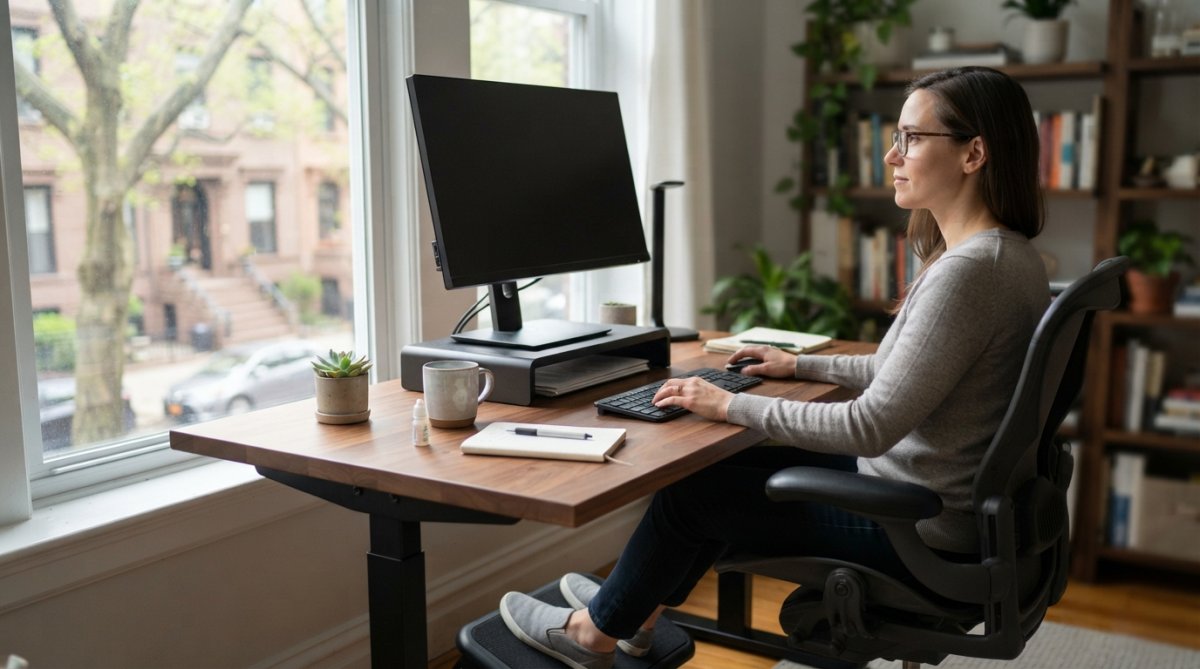
 how-to
Ergonomic Desk Setup for Computer Vision Syndrome
Table of Contents
- Understanding Computer Vision Syndrome and Workstation Setup
- Best Monitor Height for Ergonomics and Eye Comfort
- Monitor Distance and Viewing Range
- How to Reduce Glare on Computer Screens
- The 20-20-20 Rule for Eye Strain Relief
- Eye Exercises for Digital Eye Strain
- Posture, Lighting, and Multi-Monitor Considerations
- Frequently Asked Questions
Last Updated: September 23, 2026
Understanding Computer Vision Syndrome and Workstation Setup
An ergonomic desk setup for computer vision syndrome is essential, as the condition affects millions of people who spend hours at screens daily. Your eyes strain. Your neck hurts. Headaches become routine. The culprit isn't your eyesight, it's your setup. (Source: National Institute for Occupational Safety and Health (NIOSH) guidelines)
Computer vision syndrome is the discomfort and vision problems that develop from prolonged screen use. It combines digital eye strain, neck tension, and postural fatigue into one problem that compounds throughout your workday. Patients often arrive with complaints they think are separate issues, dry eyes, headaches, blurred vision, when they're all symptoms of the same root cause: an ergonomic desk setup that doesn't match how your eyes actually work.
The fix isn't complicated. It requires understanding three things: where your monitor sits, how far away it is, and what light hits your face. Get these right, and most symptoms disappear within days.
Your workstation setup determines whether you develop computer vision syndrome or avoid it entirely. A monitor positioned too high forces your neck into extension. Too low, and you hunch forward. Too close, and your accommodation reflex works overtime. Too far, and you strain to see. The distance between you and your screen, the height of your monitor, the angle of your gaze, these aren't minor details. They're the foundation of ocular comfort.
This guide covers the exact adjustments that eliminate digital eye strain. We'll show you how to position your monitor, adjust your lighting, and use proven techniques like the 20-20-20 rule to keep your eyes fresh throughout the day.
Best Monitor Height for Ergonomics and Eye Comfort
Your monitor height determines your head and neck position for eight hours straight. Get it wrong, and you're building strain into every single day.
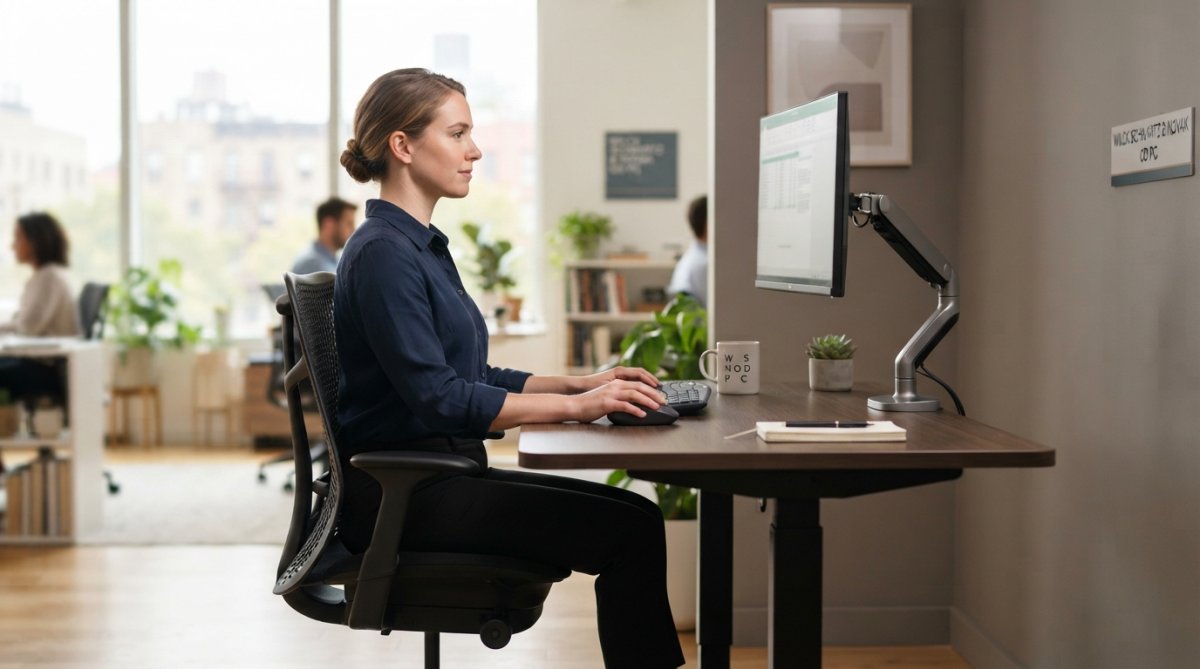
The ideal monitor height places the top of your screen at or slightly below eye level. Your gaze should fall naturally at the upper third of the display. This keeps your neck in a neutral position, not tilted up or down. Most people position monitors too high, which forces them to look up constantly. This extends the neck and tightens the upper trapezius muscles.
Here's how to find the right height:
- Sit in your chair with your feet flat on the floor
- Look straight ahead at a fixed point
- Adjust your monitor so the top edge aligns with that horizontal line of sight
- The center of the screen should be 15-20 degrees below your eye level
- Your eyes should rest naturally on the upper portion of the display
If your monitor is fixed to a desk, use a monitor stand or arm to raise it. A simple riser costs under thirty dollars and eliminates neck strain immediately. Laptop users face a particular challenge, the screen sits too low by design. Add an external keyboard and mouse, then elevate the laptop on a stand so the top of the screen reaches eye level.
The monitor height adjustment is the single most impactful change you can make to reduce computer vision syndrome symptoms. Many people see improvement in neck pain and headaches within the first week.
Monitor Distance and Viewing Range
How far you sit from your screen matters as much as how high it sits. Distance determines how hard your eyes work to maintain visual acuity and focus.
The ideal viewing distance is 20 to 26 inches from your eyes to the screen. This is roughly the distance from your elbow to your fingertips when your arm is extended. At this distance, your eyes relax into their natural focal range without accommodation stress.
Sitting too close forces your eyes to accommodate excessively. Your ciliary muscles contract and tire rapidly. This creates the sensation of eye fatigue and blurred vision. You may unconsciously lean closer to see better, which worsens the problem by reducing distance further.
Sitting too far away requires you to strain to read text and see details. You lean forward. Your posture collapses. Your neck extends. The entire ergonomic chain breaks down.
Use this simple test:
- Sit at your desk in your normal working position
- Extend your arm toward the monitor
- Your fingertips should nearly touch the screen
- If they fall short, move your chair back
- If they extend past the screen, move closer
For people with presbyopia or vision changes, the ideal distance may shift slightly. Your eye care professional can help you determine the optimal viewing distance during a comprehensive eye exam. Your eye care professional can help you determine the optimal viewing distance during a comprehensive eye exam. During routine exams, eye care professionals can assess visual needs and provide specific recommendations for your workstation.
The 20-26 inch range works for most people. Adjust within that zone based on your screen size and vision correction.
How to Reduce Glare on Computer Screens
Glare is light reflecting off your screen directly into your eyes. It causes immediate discomfort and reduces contrast, making text harder to read. Screen glare accelerates digital eye strain significantly.
Glare comes from two sources: direct light (windows, overhead lights) and reflected light (light bouncing off surfaces). Eliminating both requires strategic positioning and light management.
Position your monitor perpendicular to windows. If your window faces north or south, position your desk so the window is to your side, not behind or in front of your screen. Light coming from directly behind creates the worst glare. Light from the side is manageable.
For overhead lighting, reduce brightness or reposition lights so they don't shine directly on your screen. Indirect lighting works better than direct fixtures. If your workplace uses fluorescent panels, ask if they can be dimmed or repositioned. Many offices over-light their spaces unnecessarily.
Anti-glare screen filters reduce reflections mechanically. They're inexpensive and effective. Place one over your monitor to cut glare by 50-75 percent. Blue light filtering glasses offer additional protection by reducing the high-energy light wavelengths that contribute to eye fatigue. These glasses won't eliminate glare, but they reduce visual stress when combined with proper monitor positioning.
Screen brightness adjustment is critical. Match your screen brightness to your ambient lighting. A bright screen in a dark room strains your eyes. A dim screen in bright light forces you to lean closer. Use your monitor's brightness control to match the light level around you.
Many people overlook glare because it seems minor. But consistent glare exposure is one of the biggest drivers of computer vision syndrome. Reducing it often provides immediate relief. (Source: Occupational Safety and Health Administration (OSHA) recommendations)
The 20-20-20 Rule for Eye Strain Relief
The 20-20-20 rule is the simplest, most effective technique for managing digital eye strain during your workday. It works because it interrupts the accommodation cycle and allows your eyes to relax.
Here's the rule: Every 20 minutes, look at something 20 feet away for at least 20 seconds.
When you focus on a distant object, your accommodation reflex relaxes completely. Your ciliary muscles stop contracting. Your eyes rest. This brief interruption prevents the cumulative fatigue that builds from hours of near-focus work. Maintaining this visual rhythm alongside proper posture helps you stop back pain at your desk while ensuring your entire musculoskeletal system remains as resilient as your vision.
The distance matters. Twenty feet is far enough that your eyes reach optical infinity, the point where accommodation is completely relaxed. Anything closer than 20 feet still requires some accommodation effort. You need genuine distance, not just a glance across the room.
Set a timer on your phone or use a browser extension that reminds you every 20 minutes. When the alert sounds, stop working and look out a window or across the office at a distant object. Don't stare at your phone or another screen during this break. The point is to give your eyes a complete rest from near-focus work.
Many people find that implementing the 20-20-20 rule eliminates most of their digital eye strain within days. It costs nothing and requires minimal effort.
Eye Exercises for Digital Eye Strain
Eye exercises strengthen the muscles that control focus and eye movement. They also interrupt the static accommodation pattern that develops during screen work.
Posture, Lighting, and Multi-Monitor Considerations
Your posture determines whether your ergonomic desk setup actually works. Poor posture defeats even the best monitor positioning.
Frequently Asked Questions
How does an ergonomic desk setup help prevent computer vision syndrome?
Proper ergonomic desk setup reduces the physical strain on your eyes and neck by positioning your monitor at the correct height and distance, minimizing accommodation reflex strain. When your screen is too high, too low, or too close, your eyes work harder to focus and your neck compensates with poor posture. Correct positioning, monitor at eye level, 20-26 inches away, combined with reduced glare and proper lighting significantly decreases digital eye strain, dry eyes, and headaches associated with extended screen time.
What is the 20-20-20 rule and how often should I use it?
The 20-20-20 rule means every 20 minutes, look at something 20 feet away for 20 seconds. This breaks the accommodation reflex cycle that causes eye fatigue during screen work. Looking at distant objects relaxes your eye muscles and increases your blink rate, reducing dry eye. Apply this rule throughout your workday, set a timer if needed. Most professionals find that following this rule consistently reduces afternoon eye fatigue and helps maintain visual acuity even during long work sessions.
Can I reduce digital eye strain with just monitor adjustments, or do I need other equipment?
Monitor adjustments alone help significantly, but combining height, distance, and brightness adjustments with glare reduction, proper lighting, and the 20-20-20 rule produces the best results. Anti-glare screen filters or blue light glasses can provide additional comfort, especially in bright offices. However, most people see substantial improvement from positioning their monitor correctly and adjusting screen brightness and contrast to match their ambient lighting. Start with these fundamentals; add accessories only if eye strain persists after a week of proper setup.
How do I know if my desk setup is causing my eye problems?
Computer vision syndrome symptoms include eye strain, dry eyes, blurred vision, headaches, and neck pain that worsen during or after screen work. If symptoms improve when you step away from your desk or after following the 20-20-20 rule, your setup likely contributes to the problem. A comprehensive eye exam can rule out underlying vision issues like uncorrected refractive error or dry eye disease that may be worsened by poor ergonomics. Schedule an appointment to assess your overall eye health and get personalized recommendations for your specific workstation.