 how-to
Ergonomic Desk Setup for Eye Comfort: 7 Steps
Table of Contents
- Why Your Desk Setup Affects Eye Comfort
- Step 1: Get Computer Monitor Height and Distance Right
- Step 2: Set Up Desk Lighting to Reduce Eye Strain
- Step 3: Dial In Chair Height, Desk Height, and Seated Posture
- Step 4: Apply the 20/20/20 Rule for Eyes During Screen Work
- Step 5: Fine-Tune Screen Settings for Digital Eye Strain Relief
- Step 6: Personalize the Setup for Prescription and Progressive Lenses
- Step 7: Run the Final Ergonomic Desk Setup Checklist
- Frequently Asked Questions
Last Updated: October 8, 2026
Why Your Desk Setup Affects Eye Comfort
An ergonomic desk setup for eye comfort is the arrangement of your monitor, lighting, chair, and desk so your eyes and body stay relaxed through long screen sessions.
Screen position, glare, and posture all affect how hard your eyes work. Below, seven steps to build a setup that feels better by the end of the week.
Most guides tell you to "sit up straight" and stop there.
Step 1: Get Computer Monitor Height and Distance Right
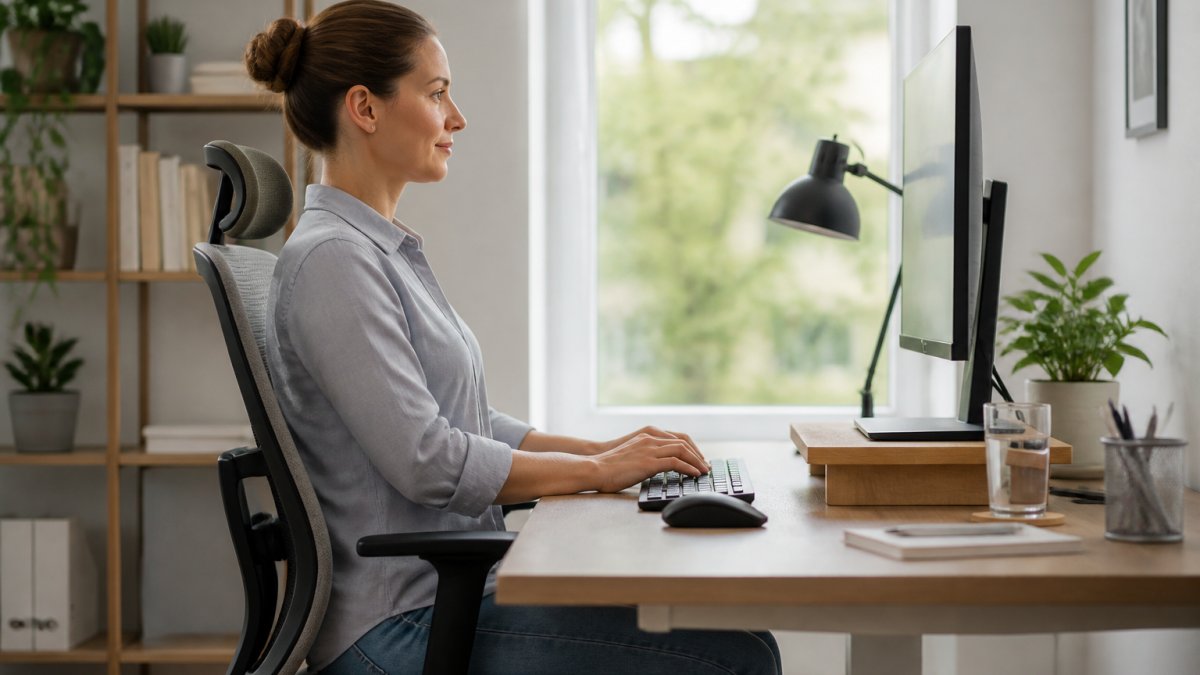
Set the top third of your screen at eye level and keep the monitor about an arm's length away. This is the single biggest change most people can make.
Here's what that looks like in practice:
- Top of the screen sits at or just below eye level
- Screen tilts back slightly, about 10 to 20 degrees
- Monitor sits roughly 20 to 28 inches from your face
If you wear glasses, push the screen a little farther back. Bifocal and progressive wearers often tilt their chin up to see, which tightens the neck.
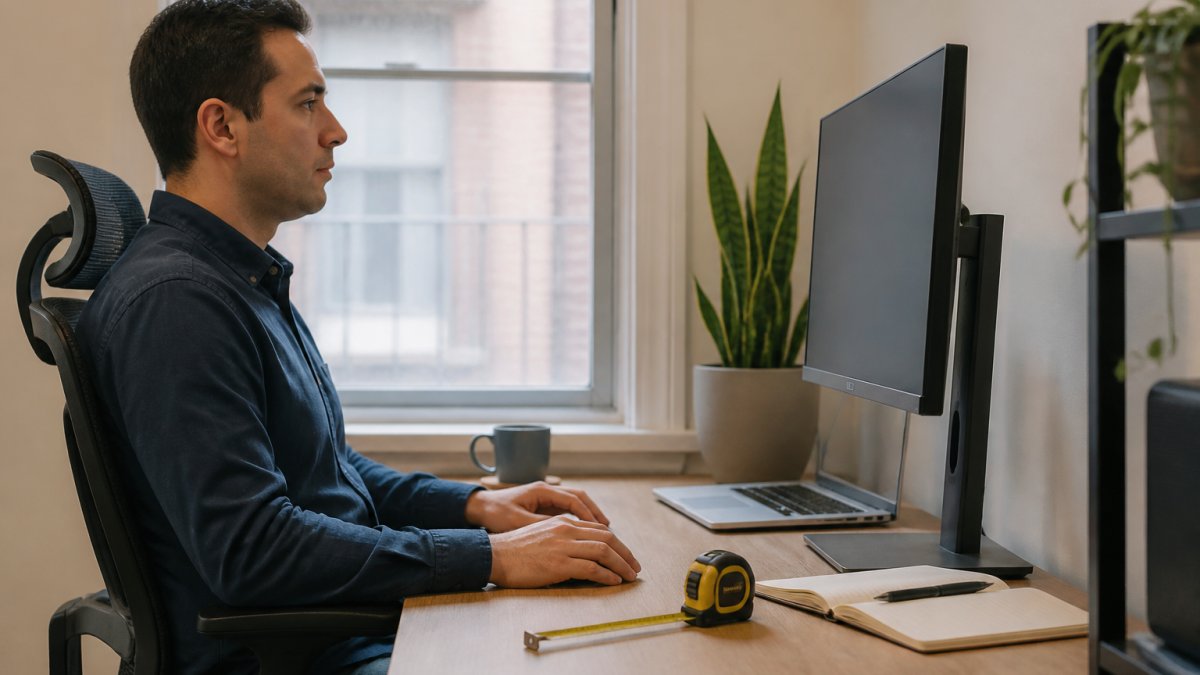
Laptop, Dual-Monitor, and Multi-Device Adjustments
Laptops are the worst offenders because the screen and keyboard are locked together. Raise the laptop on a stand and add a separate keyboard and mouse. That gets the screen up without wrecking your wrists.
For dual monitors, place the one you use most directly in front of you, angle the second inward, and keep both tops level. If you split time between devices, match brightness and text size so your eyes don't reset every time you look over.
Step 2: Set Up Desk Lighting to Reduce Eye Strain
Desk lighting to reduce eye strain works best when the room is brighter than your screen, not darker.
A useful target: the wall behind your monitor should read as roughly as bright as the screen itself. Hold a sheet of white paper next to the screen, then look at the wall behind the monitor. If the paper looks noticeably brighter than the wall, the room is too dim.
A few rules to consider:
- Use soft, indirect light instead of a single harsh overhead bulb
- Add a task lamp aimed at your desk surface, not at your screen
- Keep the lamp shade positioned so the bulb never faces your eyes
Screen Placement Relative to Windows and Light Sources
Never put your screen directly in front of or behind a window. Facing a window means staring into glare all day. Sitting with your back to one throws reflections across the glass.
The better move is to sit at a right angle to the window, so daylight comes in from the side. If you cannot move the desk, close the blinds on the bright side or add an anti-glare filter.
Troubleshooting Glare Through the Day
Glare shifts as the sun moves, clouds pass, and lights come on. A setup that feels fine at 9 a.m. can be uncomfortable by 3 p.m. Run these checks when your eyes feel tired:
- Morning: Is low sun coming in from the side and hitting the screen? Angle blinds so light lands on the wall, not the glass.
- Midday: Is the overhead light reflecting off the screen? Tilt the monitor down a few degrees or move the task lamp.
- Afternoon: Has the sun moved behind you? Check for a bright rectangle reflected on the screen and close the blind on that side.
Task Light Placement
A task lamp should light the paper or keyboard you are reading, not the screen. Place it on the side opposite your writing hand so your hand does not cast a shadow. Aim the shade down at the desk and keep the bulb out of your line of sight. If the lamp has a dimmer, set it so the desk surface is bright enough to read comfortably without the screen looking dim by comparison.
Step 3: Dial In Chair Height, Desk Height, and Seated Posture
Good posture starts with your feet flat on the floor and your elbows at 90 degrees. When your body is supported, your eyes don't have to compensate for a slumping neck.
Work through these in order:
- Set chair height so your feet rest flat, not dangling
- Adjust the desk so your elbows sit at roughly 90 degrees
- Slide in until your lower back meets the lumbar support
A chair that adjusts is worth more than a fancy desk. If your feet don't reach the floor, use a footrest. If your desk is fixed and too high, raise the chair and add the footrest.
Step 4: Apply the 20/20/20 Rule for Eyes During Screen Work
The 20/20/20 rule for eyes means every 20 minutes, look at something 20 feet away for 20 seconds.
Set a timer, because you will forget. Most people blink less when they stare at a screen, leading to dry, gritty eyes by mid-afternoon.
Pair the rule with these habits:
- Blink fully and often, not just halfway
- Keep a bottle of water nearby and sip through the day
- Stand and stretch every hour
The breaks add up. Five or six a day keeps your eyes from hitting empty by 4 p.m.
Step 5: Fine-Tune Screen Settings for Digital Eye Strain Relief
Digital eye strain relief often comes down to three screen settings: brightness, contrast, and text size. Get these right and the rest of your setup works harder.
Try this:
- Set brightness to match the room, so the screen doesn't glow
- Raise contrast so text edges stay sharp
- Bump up text size until you can read without leaning in
If you still squint after all that, your prescription may be out of date. That's a conversation for an eye exam, not a settings menu.
Step 6: Personalize the Setup for Prescription and Progressive Lenses
If you wear prescription glasses, your setup needs one extra adjustment. Progressive and bifocal lenses have a reading zone at the bottom, so where you point your eyes changes what's in focus.
A few fixes for lens wearers:
- Lower the monitor slightly so you look through the reading zone
- Keep the screen closer if you wear single-vision reading glasses
- Ask about computer-specific lenses if you sit at a screen all day
A monitor arm is the most underrated tool here. It lets you move the screen up, down, and closer without touching your chair. Many people find that alone solves the neck-and-eye combo problem.
Step 7: Run the Final Ergonomic Desk Setup Checklist
Most guides hand you a list of adjustments and leave you to guess the order. Order matters, because changing one setting moves the others. Work through the sequence below, then use the checklist to verify.
The Setup Sequence
- Start with the chair. Set seat height so your feet rest flat on the floor with knees at roughly 90 degrees. If your feet dangle, add a footrest before adjusting anything else.
- Set desk height. Adjust the desk so your elbows rest at about 90 degrees with shoulders relaxed. If the desk is fixed and too high, raise the chair and keep the footrest.
- Position the monitor. Bring the screen to about an arm's length away, tilt it back 10 to 20 degrees, and set the top third at eye level.
- Adjust lighting. Make the wall behind the monitor roughly as bright as the screen, and remove any reflection you can see on the dark screen.
- Fine-tune screen settings. Match brightness to the room, raise contrast, and increase text size until you can read without leaning in.
- Add the behavioral layer. Set a 20/20/20 timer and keep water within reach.
Verification Checklist
Run through this once after setup, then again whenever your eyes feel tired.
| Check | Target | How to Verify | Why It Matters |
|---|---|---|---|
| Screen height | Top third at eye level | Close your eyes, open them, and see where your gaze lands | Reduces neck strain |
| Viewing distance | About an arm's length | Extend your arm; fingertips should just touch the screen | Eases focusing |
| Screen angle | Tilted back 10-20 degrees | Look for the tilt; the top should lean away from you | Cuts glare |
| Chair height | Feet flat on the floor | Check that your thighs are roughly parallel to the floor | Supports posture |
| Desk height | Elbows at 90 degrees | Rest your hands on the desk; forearms should be level | Relaxes shoulders |
| Lighting | Room brighter than screen | Compare a sheet of white paper to the wall behind the monitor | Reduces eye fatigue |
| Glare | No reflections on screen | Turn the monitor off and look for bright shapes | Prevents squinting |
| Breaks | 20/20/20 every 20 minutes | Set a timer and confirm it fires | Restores focus |
Adapting the Checklist for Shared or Non-Standard Workstations
Not every setup fits the standard template. If you share a desk, use a laptop on the couch, or have body dimensions outside the typical range, adjust the sequence rather than abandoning it:
- Shared workstations: Save your monitor height and chair settings if the equipment allows it, or note the numbers on a sticky note so you can reset quickly.
- Wheelchair users: Focus on monitor height and distance first, since chair and desk height are often fixed. A monitor arm gives the most adjustment range when the desk cannot move.
- Shorter or taller users: If the desk cannot reach the right height, a keyboard tray or a footrest can bridge the gap. Prioritize elbow angle over matching a specific number.
If your eyes still feel dry, tired, or sore after a week of these changes, it may be more than your desk. Dry eye syndrome, allergies, and vision changes all cause the same symptoms. A comprehensive eye exam can tell the difference. Our team at Wilck Schwartz & Novak OD PC has served Brooklyn since 1964, and they treat dry eye, eye infections, and corneal abrasions alongside routine care. You can read the American Optometric Association's guidance on computer vision syndrome for more on screen-related symptoms, and the National Eye Institute's eye health resources for general prevention tips.
A proper setup helps most people. But if symptoms stick around, it's worth getting checked. The CDC's vision health overview notes that many eye conditions are easier to manage when caught early.
Frequently Asked Questions
What is the 20/20/20 rule for eye strain?
Every 20 minutes, look at something about 20 feet away for at least 20 seconds. This gives the focusing muscles inside your eyes a break from close-up screen work. Set a recurring timer or use a break reminder app so you actually follow it. Pair the rule with a blink check, since people blink less often at screens and that contributes to dry, tired eyes.
How should I position my monitor to reduce eye strain?
Place the monitor at roughly arm's length, about 20 to 28 inches, with the top third of the screen at or slightly below eye level. Tilt it back 10 to 20 degrees so your gaze lands comfortably. Keep the screen perpendicular to windows, not facing or backing them, to cut glare and reflections. If you wear progressive lenses, you may need the monitor a little lower so you can read it through the right part of the lens.
Can screen glare cause eye strain?
Yes. Bright reflections on the screen force your eyes to work harder to read text, which shows up as fatigue, burning, and headaches by the end of the day. Move the monitor so windows and overhead lights are not directly behind or in front of it. Close blinds during peak sun, add a task light with a shade, and use an anti-glare filter if the room cannot be rearranged.
When should I see an eye doctor about digital eye strain?
Book an exam if symptoms last more than a week, keep returning after you adjust your setup, or come with headaches, blurred vision, or dry eyes that drops do not fix. An eye doctor can check whether an uncorrected prescription, focusing problem, or dry eye condition is driving the strain. Schedule an appointment with Wilck Schwartz & Novak OD PC to rule out underlying causes.
Your eyes shouldn't feel drained at the end of a workday. If they do, your desk setup is a good place to start, but it isn't the whole story. At Wilck Schwartz & Novak OD PC, we use advanced optometric equipment to assess overall eye health and diagnose issues with precision. We also offer free LASIK consultations with pre- and post-operative care for patients exploring that path. Schedule an appointment and let us help you see your screen, and everything else, more comfortably.